Self-Hosting Cal.com: Docker Setup, Licensing and Real Costs
Run your own Cal.com instance with Docker: the AGPL versus cal.diy licensing choice, full setup, SMTP, HTTPS, backups, and honest cost math against hosted plans.

Cal.com charges $12 per user per month for team scheduling, so a 10-person team pays $1,440 a year for software that is open source. You can run the same booking engine on your own server for roughly €10 a month, with full control over where booking data lives. This guide walks through the whole setup: the licensing choice most guides skip, the Docker install, email delivery, HTTPS, backups, updates, and the honest math on when self-hosting is the wrong call.
What you are actually installing
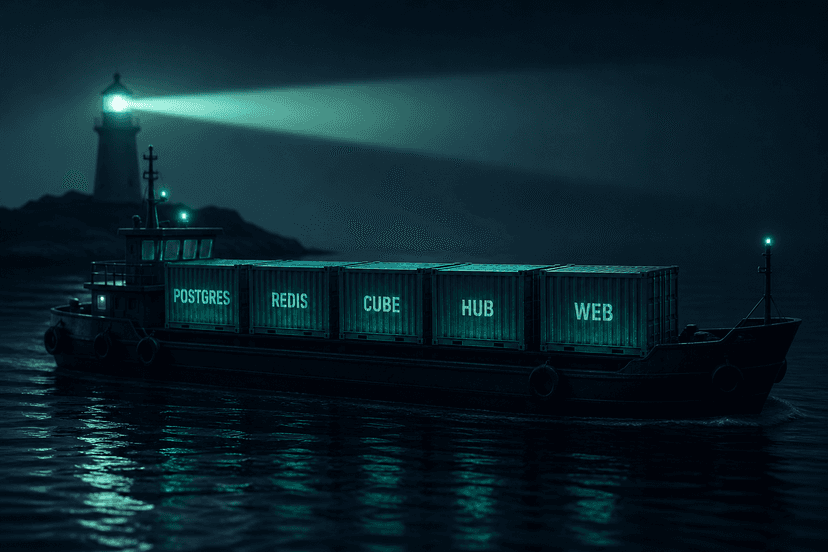
Cal.com is a Next.js application backed by PostgreSQL. The current Docker stack has four pieces:
- Web app: the Next.js booking application on port 3000, published as a prebuilt image on Docker Hub.
- PostgreSQL: version 13 or newer, stores every booking, user, event type, and calendar connection.
- Redis: caching, job queues, session storage, and rate limiting. Older guides omit it, but the current compose file includes it as standard, so plan for it from the start.
- Prisma Studio (optional): a database browser on port 5555. Useful during setup, remove it in production.
Prerequisites on the server are just Docker and the Compose plugin (docker compose, no hyphen). If you build from source instead of using the prebuilt image, you also need Node.js 18+ and Yarn, and a lot more patience.
The licensing fork most guides skip
As of 2026 there are two ways to self-host Cal.com, and the difference is licensing versus features. Get this decision right before you install anything, because switching later means a migration.
Path 1: the prebuilt calcom/cal.com image. Pull a tagged release from Docker Hub and run it. The core app is AGPLv3, which is free to self-host. The enterprise code under the ee directory (things like SAML SSO and some organization features) requires a paid license key. On first run, the setup wizard asks you to pick the free AGPLv3 license or enter a paid key. For personal and team booking pages, the free option covers what you need, including teams and round-robin scheduling.
Path 2: cal.diy, the MIT community edition. Cal.diy is a fork of Cal.com with all commercial code removed, licensed 100% MIT. There is no license key and no open-core split. The catch is significant: Teams, Organizations, Insights, Workflows, and SSO/SAML have been stripped out. If you need round-robin scheduling across a sales team, cal.diy will not give it to you. Cal.diy publishes its own image (calcom/cal.diy on Docker Hub), so the install looks much like Path 1, but the repository is explicit that the project is strictly recommended for personal, non-production use.
For most businesses, Path 1 is the right choice: you keep team features, you get a maintained image, and AGPLv3 costs you nothing when you are running it for your own scheduling. This guide follows Path 1.
Server requirements and real costs
The prebuilt-image path is light. A server with 2 vCPU, 4 GB RAM, and 20 to 40 GB of disk runs the app plus Postgres and Redis comfortably for a small team. If you plan to co-locate other tools on the same box (n8n, a CRM, Chatwoot), step up to 4 vCPU and 8 GB.
Using Hetzner Cloud as the reference point (prices ex VAT, per the 15 June 2026 price adjustment):
- CX23 (2 vCPU, 4 GB RAM, 40 GB disk, 20 TB traffic): €5.49 per month excluding IPv4, about €5.99 with an IPv4 address.
- CX33 (4 vCPU, 8 GB RAM, 80 GB disk): €8.49 per month excluding IPv4, about €8.99 with IPv4. This is the comfortable choice for a team or a shared box.
- Backups: Hetzner charges +20% of the server price for its backup add-on.
So a comfortable production server lands at roughly €10 to €12 per month all-in. Add transactional email: booking volume for a small team sits well inside the free tiers of Resend or similar providers, so budget $0 to $10 per month. Total running cost: about €10 to €20 per month, flat, regardless of team size.
Compare that with the hosted plans on the Cal.com pricing page:
- Free: 1 user only. Not a team option.
- Teams: $12 per user per month billed yearly. Ten users is $120 a month, $1,440 a year. Twenty-five users is $300 a month.
- Organizations: $28 per user per month billed yearly, adding SAML SSO, SCIM, and compliance attestations.
A 10-person team self-hosting on a CX33 saves roughly $1,300 a year against the hosted Teams plan, before counting your maintenance time. That time is real: budget two to four hours a month for updates, backup checks, and the occasional fix, which is why the "when this is the wrong choice" section below matters.
Step-by-step setup with Docker
Tested path on Ubuntu 24.04, but any Linux with Docker works. Install Docker from the official apt repository, not the distro package, so you get the Compose v2 plugin.
1. Create the project
mkdir ~/calcom && cd ~/calcom
Two files live here: docker-compose.yml and .env.
2. Write the Compose file
Pin the image to a released tag from the Cal.com releases page rather than latest, so an upgrade is a deliberate choice:
services:
  database:
    image: postgres:16
    restart: always
    environment:
      POSTGRES_USER: ${POSTGRES_USER}
      POSTGRES_PASSWORD: ${POSTGRES_PASSWORD}
      POSTGRES_DB: ${POSTGRES_DB}
    volumes:
      - db-data:/var/lib/postgresql/data
  redis:
    image: redis:7
    restart: always
  calcom:
    image: calcom/cal.com:v6.2.0
    restart: always
    depends_on:
      - database
      - redis
    ports:
      - "3000:3000"
    environment:
      DATABASE_URL: postgresql://${POSTGRES_USER}:${POSTGRES_PASSWORD}@database:5432/${POSTGRES_DB}
      DATABASE_DIRECT_URL: postgresql://${POSTGRES_USER}:${POSTGRES_PASSWORD}@database:5432/${POSTGRES_DB}
      REDIS_URL: redis://redis:6379
      NEXTAUTH_SECRET: ${NEXTAUTH_SECRET}
      NEXTAUTH_URL: https://cal.example.com
      CALENDSO_ENCRYPTION_KEY: ${CALENDSO_ENCRYPTION_KEY}
      NEXT_PUBLIC_WEBAPP_URL: https://cal.example.com
      EMAIL_FROM: ${EMAIL_FROM}
      EMAIL_SERVER_HOST: ${EMAIL_SERVER_HOST}
      EMAIL_SERVER_PORT: ${EMAIL_SERVER_PORT}
      EMAIL_SERVER_USER: ${EMAIL_SERVER_USER}
      EMAIL_SERVER_PASSWORD: ${EMAIL_SERVER_PASSWORD}
      CALCOM_TELEMETRY_DISABLED: "1"
volumes:
  db-data:
3. Generate secrets in .env
POSTGRES_USER=calcom
POSTGRES_PASSWORD=<openssl rand -base64 24>
POSTGRES_DB=calendso
NEXTAUTH_SECRET=<openssl rand -base64 32>
CALENDSO_ENCRYPTION_KEY=<openssl rand -base64 24>
EMAIL_FROM=Cal.com Bookings <bookings@example.com>
EMAIL_SERVER_HOST=smtp.resend.com
EMAIL_SERVER_PORT=465
EMAIL_SERVER_USER=resend
EMAIL_SERVER_PASSWORD=<your SMTP key>
Two of these values deserve respect. CALENDSO_ENCRYPTION_KEY encrypts stored integration credentials, including calendar OAuth tokens. If you lose it or change it after first run, every connected calendar is orphaned and must be reconnected. Back it up somewhere off the server, like a password manager. Note it is 24 bytes, not 32. And never ship the stock database credentials from the example files (unicorn_user / magical_password) to a real deployment.
4. Start the stack
docker compose pull
docker compose up -d
docker compose logs -f calcom
The app runs Prisma migrations on first start, so the container is up before the app answers. Wait until the logs show migrations applied and the Next.js server listening. Browse to port 3000 and the setup wizard creates your admin account, then walks you through username, calendar connection, and availability. The wizard also asks you to confirm the free AGPLv3 license or enter a paid enterprise key.
Before touching DNS, create a test event type, make a booking, and confirm it appears in the dashboard. Check /api/health returns OK.
Wiring up email so bookings actually send
This is the step everyone forgets. Until you set EMAIL_FROM and the EMAIL_SERVER_* variables, the app works fine and sends nothing. No confirmations, no reminders, no password resets. SMTP misconfiguration is the single most common first-run problem.
Any transactional provider with SMTP credentials works: Resend, Postmark, Amazon SES, or your own mail server. A few things that matter more than the provider:
- Authenticate the domain. Set SPF, DKIM, and DMARC records for the domain in
EMAIL_FROM, or your booking confirmations land in spam. Our guide to self-hosting a newsletter with Listmonk and Amazon SES walks through SES domain authentication and warm-up, and the same records apply to booking mail. - Use a subdomain for transactional mail (for example
mg.example.com) so a reputation problem never touches your main company domain. - Test with a real booking, not just a login. Confirmation, cancellation, and reschedule emails each render separately.
If you want SMS reminders, those run through provider credentials you configure in the app store rather than the SMTP variables, and they carry per-message carrier costs. Email reminders are effectively free at this scale, so most self-hosters skip SMS.
HTTPS and the reverse proxy
Plain HTTP on port 3000 is fine for a first look and wrong for anything real. Calendar OAuth flows and shareable booking links need a proper hostname with a valid certificate.
Point an A record at your server, then terminate TLS with Nginx (or Caddy) in front of the app. The proxy block needs the WebSocket upgrade headers; Cal.com uses them for live availability updates:
location / {
    proxy_pass http://127.0.0.1:3000;
    proxy_http_version 1.1;
    proxy_set_header Upgrade $http_upgrade;
    proxy_set_header Connection "upgrade";
    proxy_set_header Host $host;
    proxy_set_header X-Forwarded-Proto $scheme;
}
Certbot with the Nginx plugin fetches the Let us Encrypt certificate and rewrites the block for TLS. Then set NEXT_PUBLIC_WEBAPP_URL and NEXTAUTH_URL to the https:// URL of your domain and recreate the container. The prebuilt image applies the public URL at container start, so no rebuild is needed. Confirm by making a booking and checking that every link in the confirmation email uses the right domain.
Backups and updates
A running instance is not a production instance. Three habits get you there.
Nightly database dumps. The Postgres volume holds every booking and calendar link. The minimum is a nightly pg_dump copied off the server:
docker compose exec database pg_dump -U calcom calendso > backup_$(date +%F).sql
Ship the dump to object storage or a second machine. Test a restore once, because an untested backup is a hope, not a backup.
Protect the encryption key. CALENDSO_ENCRYPTION_KEY goes in your password manager, separate from the server backups. Losing the database is recoverable from a dump; losing the key orphans every calendar connection even with a perfect database.
Deliberate updates. Pin the image tag, and update on your schedule, not on the next pull:
docker compose pull
docker compose up -d
docker compose logs calcom --tail=50
Migrations run automatically on startup when the schema changes. Watch the logs for "No pending migrations" or successful migration output before sending traffic. Take a fresh pg_dump before every version bump so a failed migration has a way back.
Common mistakes
- Skipping SMTP setup, then blaming the app. Bookings save fine; emails just never send. Wire SMTP before you announce the booking page.
- Changing the encryption key. Rotating
CALENDSO_ENCRYPTION_KEYto "improve security" permanently corrupts stored calendar credentials. Generate it once, guard it forever. - Running
latest. A surprise major version on an unattendeddocker compose pullcan run migrations you did not plan for. Pin tags. - Forgetting the WebSocket headers in the reverse proxy, which breaks live availability while everything else looks fine.
- Leaving Prisma Studio exposed on port 5555 in production. It is a full database browser. Remove it or firewall it.
- Expecting team features from cal.diy. Round-robin and managed event types are not in the MIT build. If you need them, run the standard image under AGPLv3.
- One server, no monitoring. At minimum, add uptime checks against
/api/healthand alert on certificate expiry.
When self-hosting is the wrong choice
Be honest with yourself before committing:
- You need SAML SSO, SCIM, or SOC 2 paperwork. Those are Organizations-plan features at $28 per user, or enterprise license features self-hosted. Buying hosted is simpler than buying the enterprise key and running it yourself.
- Nobody on the team owns a Linux box. A booking page that the sales team depends on is production infrastructure. If a failed update at 9am on a Monday has no owner, pay the $12 per seat.
- You want zero maintenance. Updates, backups, certificate renewals, and deliverability monitoring are yours forever. Two to four hours a month, every month.
- Payments are central. Card payments on bookings run through Stripe or PayPal, so you need an account with one of them regardless of where Cal.com runs. That is neutral between hosted and self-hosted, but if your market lacks both, plan to handle payment outside the booking flow.
If you are already running other open-source tools, the calculus changes: the same server and the same backup routine can carry Cal.com alongside your CRM, support desk, and analytics. Our Twenty CRM self-hosting guide uses the same pattern: one box, one backup routine, one update window. That is the stack we deploy and run for clients as a managed open-source stack, and it is why the marginal cost of adding scheduling to an existing box is close to zero.
Frequently asked questions
Is self-hosted Cal.com really free?
The software is free under AGPLv3 for the core app, and you only pay for infrastructure: roughly €8 to €10 a month for a suitable VPS plus transactional email, which is often inside a free tier. Enterprise features under the ee directory need a paid license key. You also pay in maintenance time, about two to four hours a month.
What is the difference between Cal.com and cal.diy?
Cal.diy is the MIT-licensed community fork with all commercial code removed, including Teams, Organizations, Workflows, and SSO. It has its own official Docker image, but the project flags it for personal, non-production use. The standard Cal.com image keeps those team features under AGPLv3, free to self-host, with only enterprise-directory features gated behind a license. If you need round-robin team scheduling, use the standard image.
How much RAM does Cal.com need?
Two GB is enough for the prebuilt image with Postgres and Redis for light use, but 4 GB is a safer floor and 8 GB is comfortable for a team or a shared server. Building from source is much hungrier and wants 8 GB plus swap.
Does self-hosted Cal.com support Google Calendar and Outlook?
Yes. Calendar connections work through OAuth apps you register yourself with Google and Microsoft, then configure in the app store section of your instance. The OAuth credentials are stored encrypted with your CALENDSO_ENCRYPTION_KEY, which is why losing that key breaks every connection.
How do I update a self-hosted Cal.com safely?
Take a pg_dump backup first, then bump the pinned image tag, run docker compose pull && docker compose up -d, and watch the logs until migrations complete. Migrations run automatically on container start. If anything fails, restore the dump and roll the tag back.
Can I migrate from Calendly or hosted Cal.com to self-hosted?
Hosted Cal.com offers a one-click Calendly event import, and event types are quick to recreate manually. Booking history does not migrate, so run both in parallel for a couple of weeks and cut over when upcoming bookings on the old system have cleared. We compared the hosted options in Cal.com vs Calendly: real cost for a growing team.
Where to go from here
Self-hosting Cal.com is a weekend project with a monthly habit attached: a pinned image, a nightly pg_dump, a guarded encryption key, and updates on your schedule. For a team of ten it saves around $1,300 a year against hosted pricing, and your booking data stays on infrastructure you control. If you would rather have the savings without the maintenance, we deploy and operate Cal.com alongside Twenty, Chatwoot, Plausible, Listmonk, and Formbricks as a managed service, with backups, updates, and email deliverability handled for you. Book a call and we will tell you honestly whether it is worth it for your team size.
About AI Agents Plus Editorial
AI automation expert and thought leader in business transformation through artificial intelligence.